- Self-onboarding - The worker completes their own onboarding by providing required information and documents.
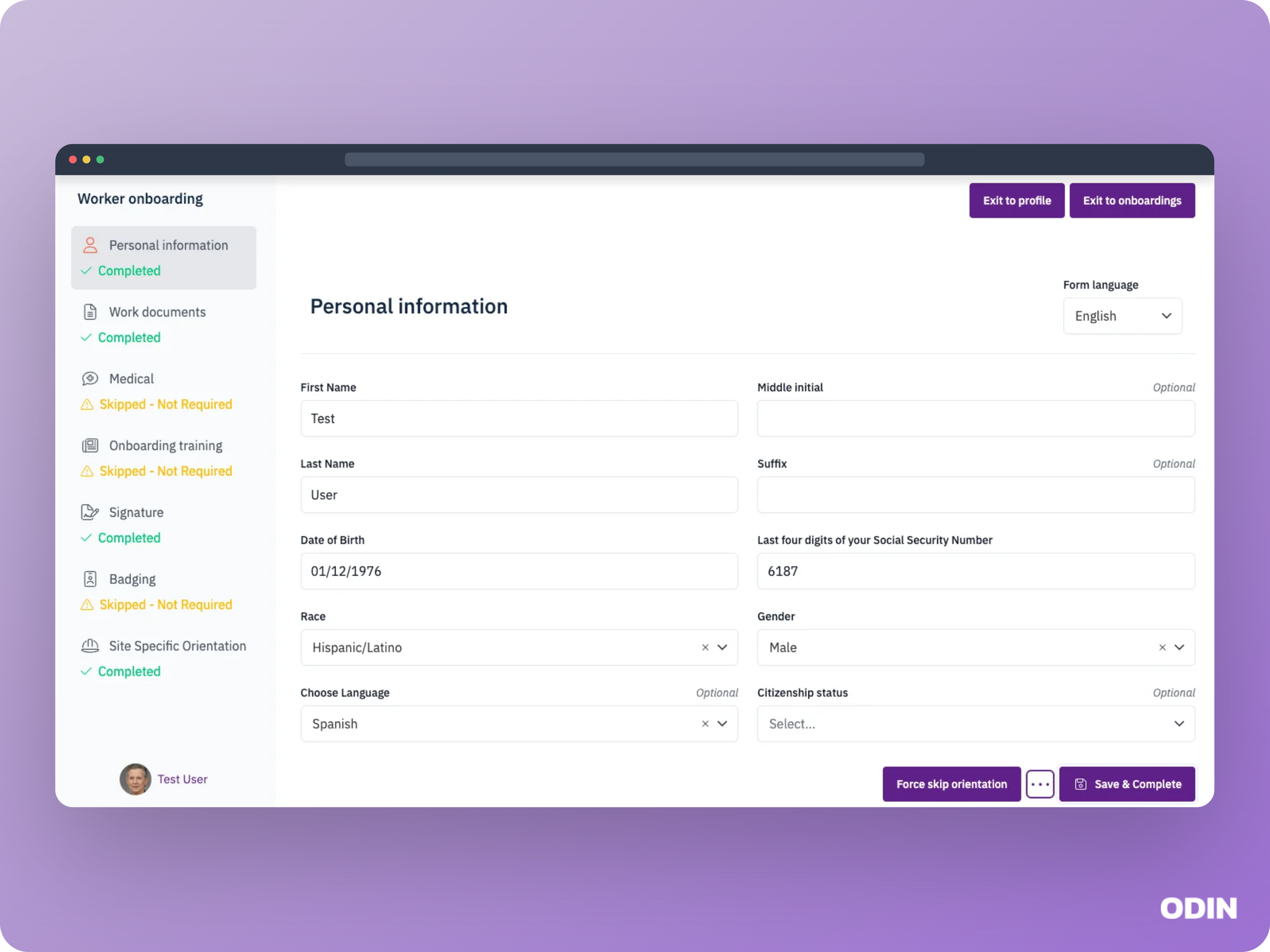
- Onboarding review - A supervisor reviews the information submitted by the worker and adds or updates any details as needed.
Statuses
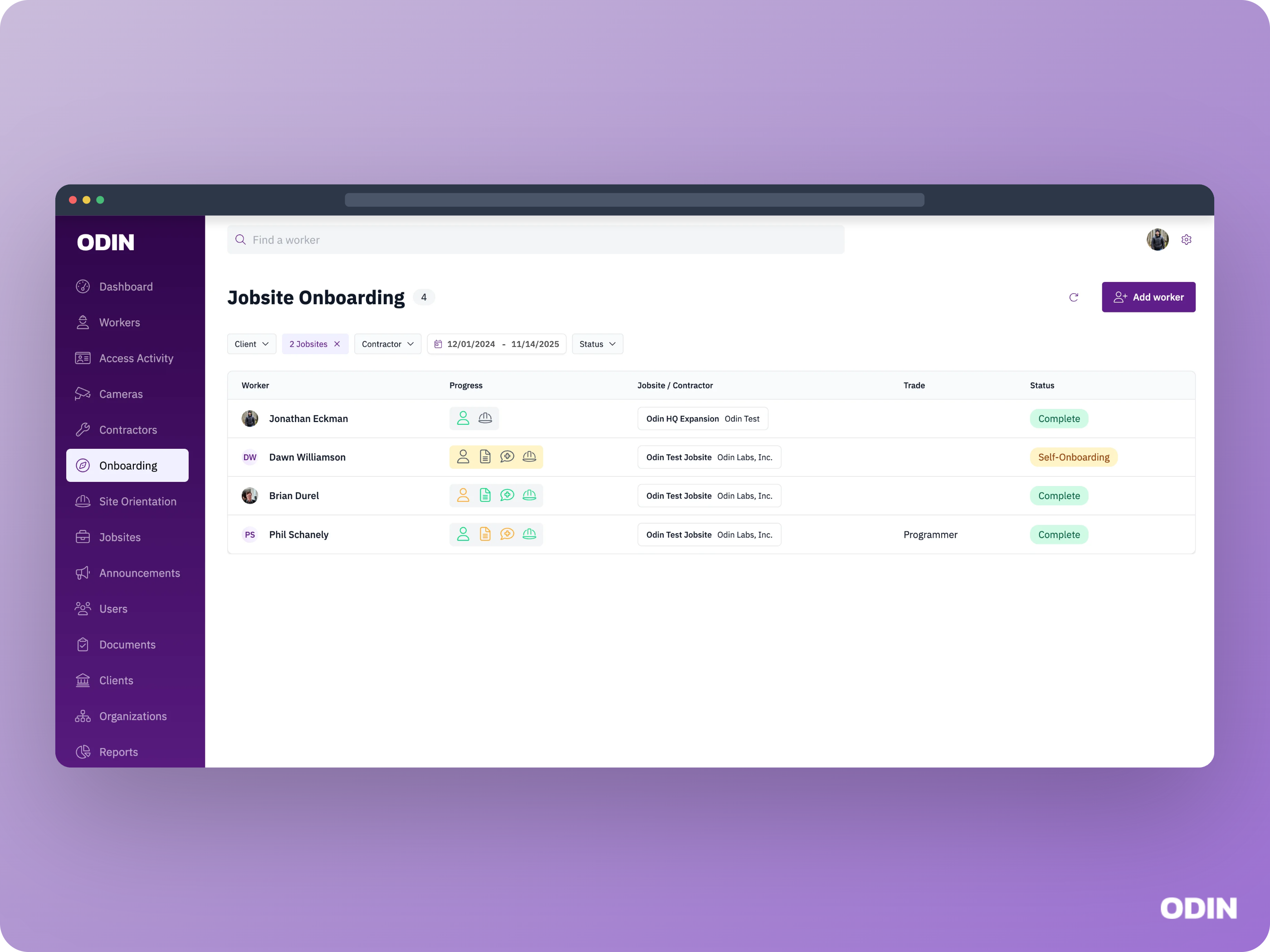
- Self-onboarding - Workers who are actively in the self-onboarding workflow, providing their information through the self-service process. Once they complete all self-onboarding steps, they move to Not Started status.
- Not started - Workers who have completed self-onboarding but haven’t begun the onboarding review process yet. They’re ready for an admin to review their submitted information.
- Needs Medical - Workers who are in the middle of the onboarding review process and still need to complete or pass their medical examination.
- At Badging - Workers in the onboarding review process who have finished everything (profile, documents, and medical) but are waiting on their badge.
- Complete - Workers whose onboarding review is complete.
Self-onboarding
1. Worker opens the self-onboarding link
The worker receives and opens the self-onboarding link for a specific jobsite. This can be retrieved from the jobsite in the portal if needed.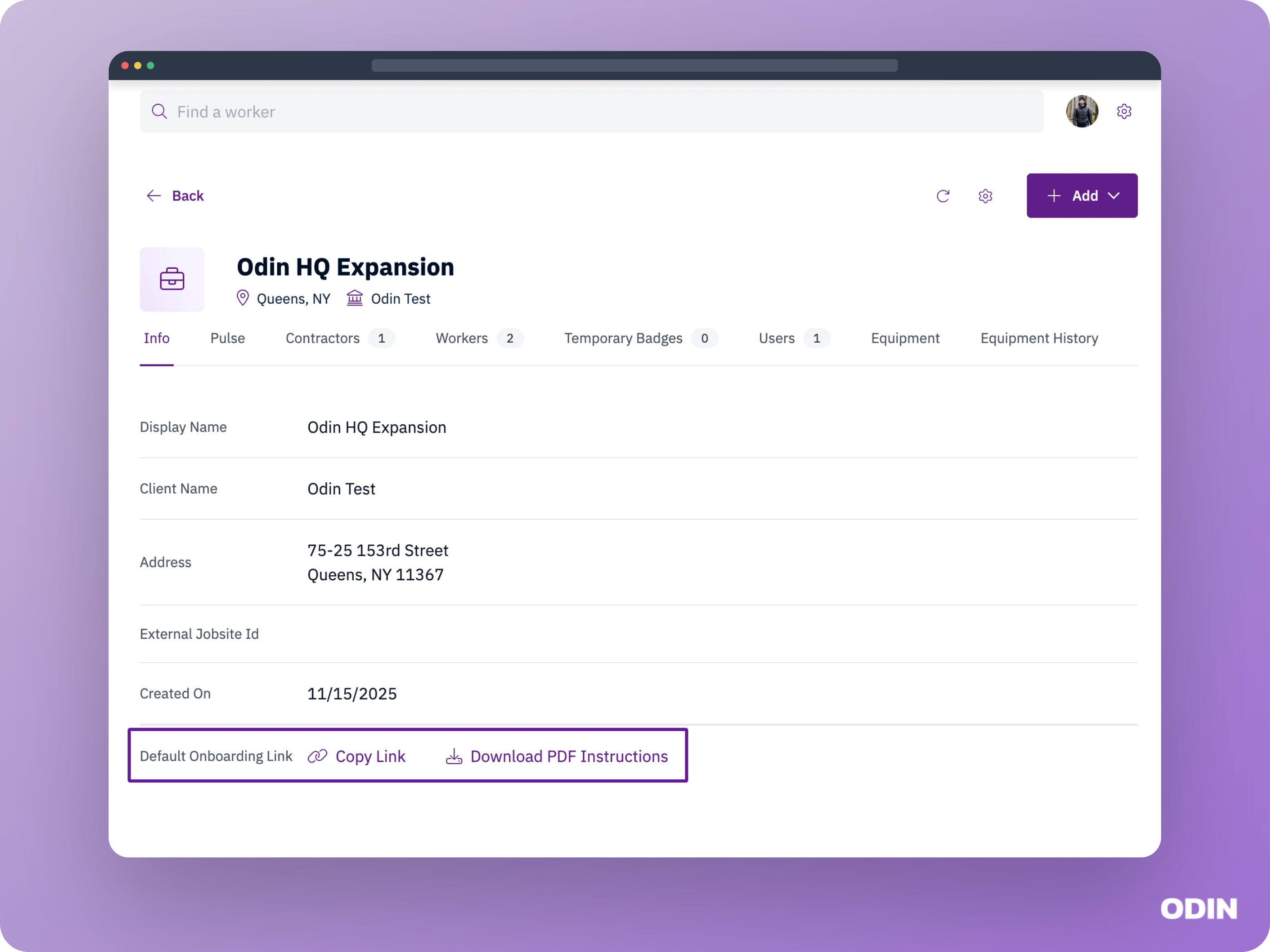
2. Determine what contractor to assign the worker
A jobsite can be configured to Enforce Valid Contractor in Self Onboarding. If this is enabled, the worker is shown a list of contractors and selects the contractor they are working for. If not, Odin skips contractor selection and automatically assigns the worker to Contractor Unassigned during self-onboarding.3. Identify the worker by phone number
The worker enters their mobile phone number. If an existing user is found in our system with that number, they will receive a one time passcode (OTP) to confirm their identity. If not, the user is prompted to provide the basic info needed to create their worker profile.4. Complete the configured onboarding steps
The onboarding process is started and is visible in the portal in the Self-onboarding status. The worker steps through the onboarding forms, providing the information the site has been configured to collect. See Self-onboard as worker to learn more about the possible self-onboarding steps. Once complete, the onboarding will move to the Not started status and is now ready to be reviewed.Onboarding review
FAQs
You’re all set
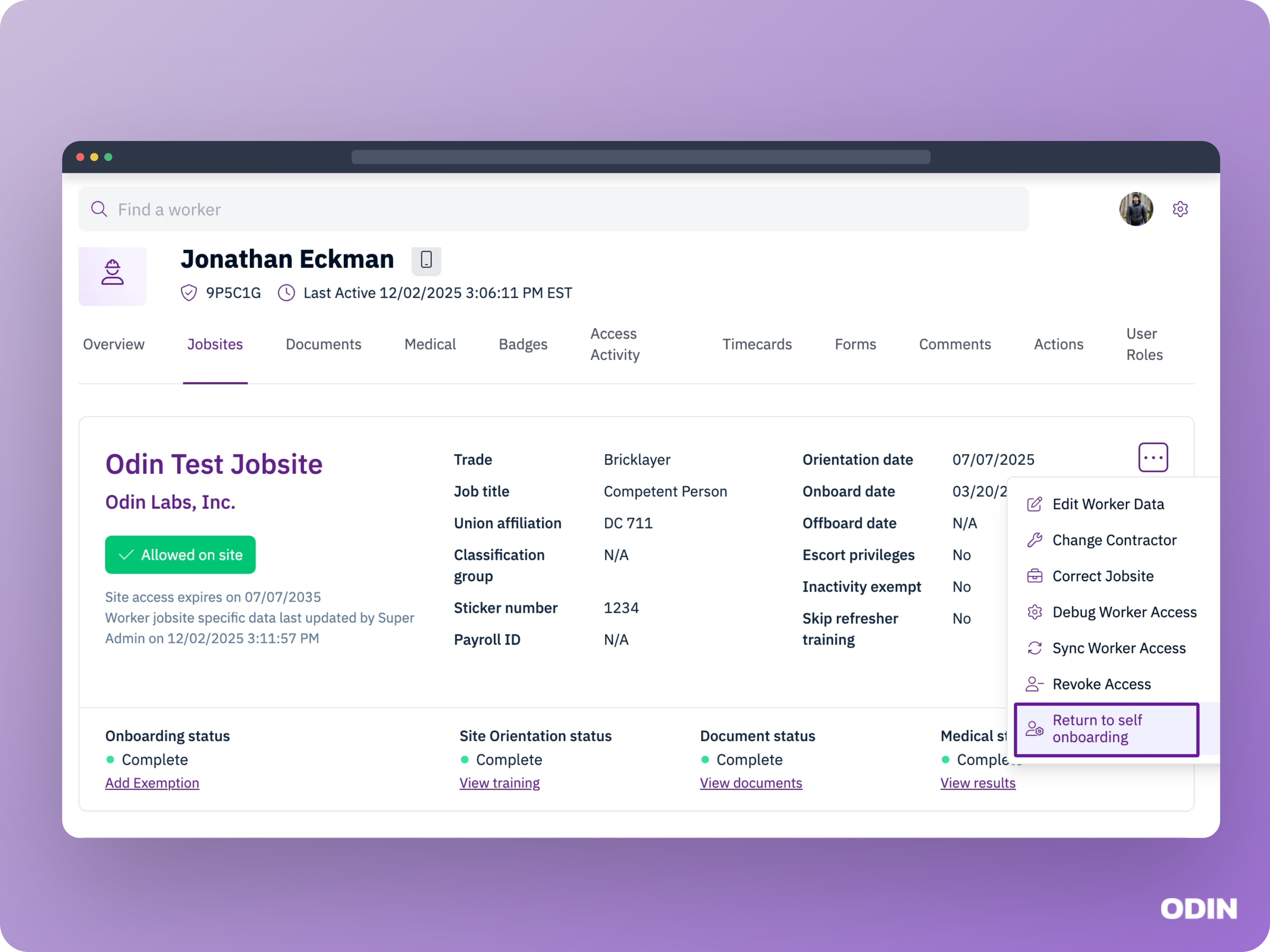
A worker might see the following message during self-onboarding:Your onboarding review is already in progress.If the worker has an existing onboarding on this jobsite and the derived status is something other than Self-onboarding or Not Started (for example, a supervisor is already reviewing or has completed their onboarding), Odin does not let the worker restart or change it through self-onboarding. If you would like to return the worker to self-onboarding, you can do so using the Return to self-onboarding action on the jobsite.
Unsuccessful assignment!
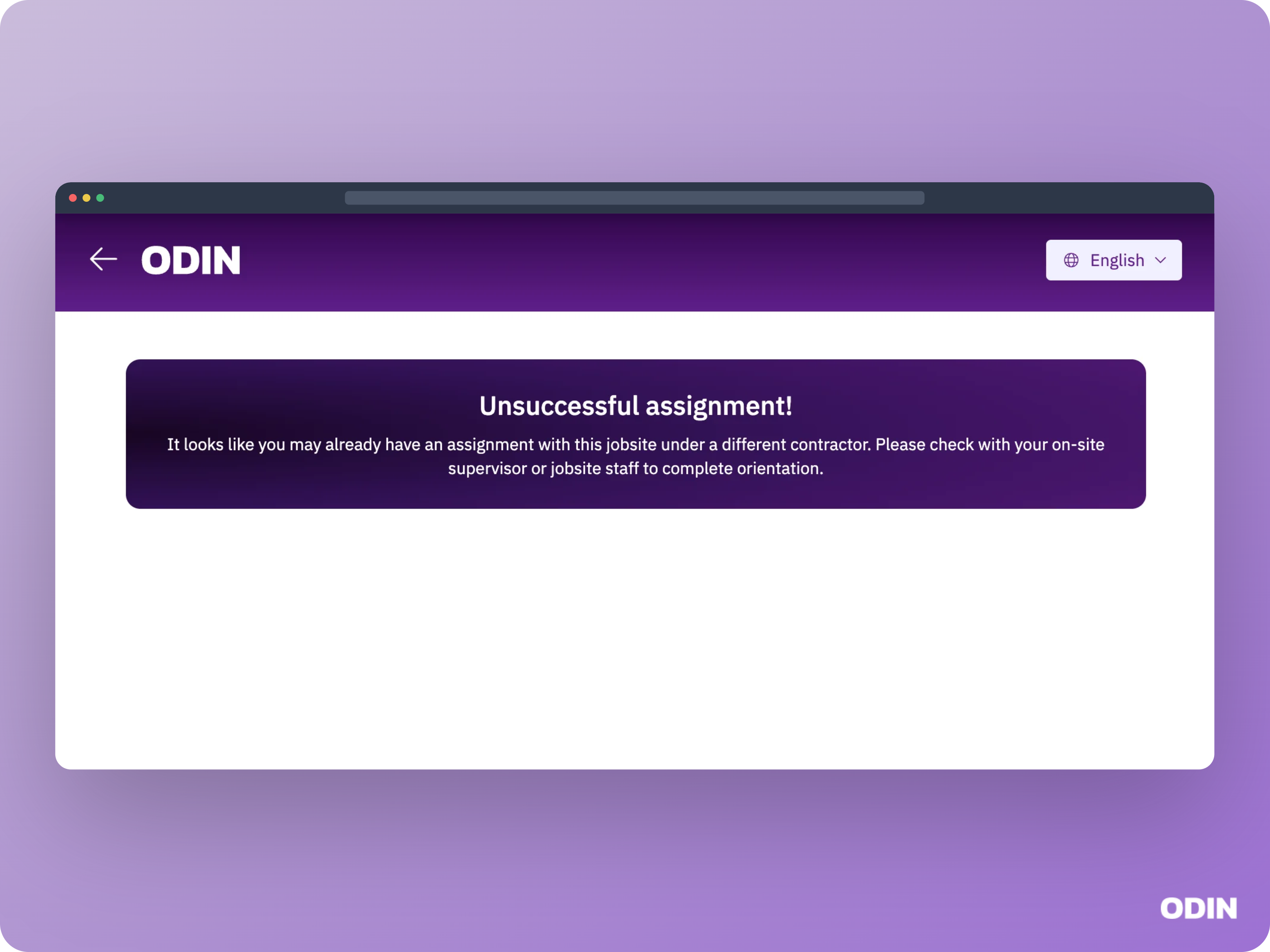
A worker might see the following message during self-onboarding:It looks like you may already be assigned to this jobsite under a different contractor. Please check with your on-site supervisor or jobsite staff to complete orientation.This appears when the worker has already onboarded under a specific contractor on the jobsite and one of the following is true:
- The Enforce Valid Contractor in Self Onboarding setting is turned off for that jobsite.
- The Enforce Valid Contractor in Self Onboarding setting is turned on and, on a second self-onboarding attempt, the worker selects a different contractor than the one they are already assigned.