Hardhat stickers can be used as a method for clocking workers in and out of the jobsite via a kiosk or a foreman’s mobile device.
Prerequisites
- Confirm with your Odin Administrator that the project is configured to accept hardhat stickers for clock in/out.
- Request stickers from the Odin team.
How to Assign a Hardhat Sticker
Navigate to Workers
Open the Workers area of Odin using the left-hand navigation.
Search for and select the worker
Search for the worker by name and select their profile.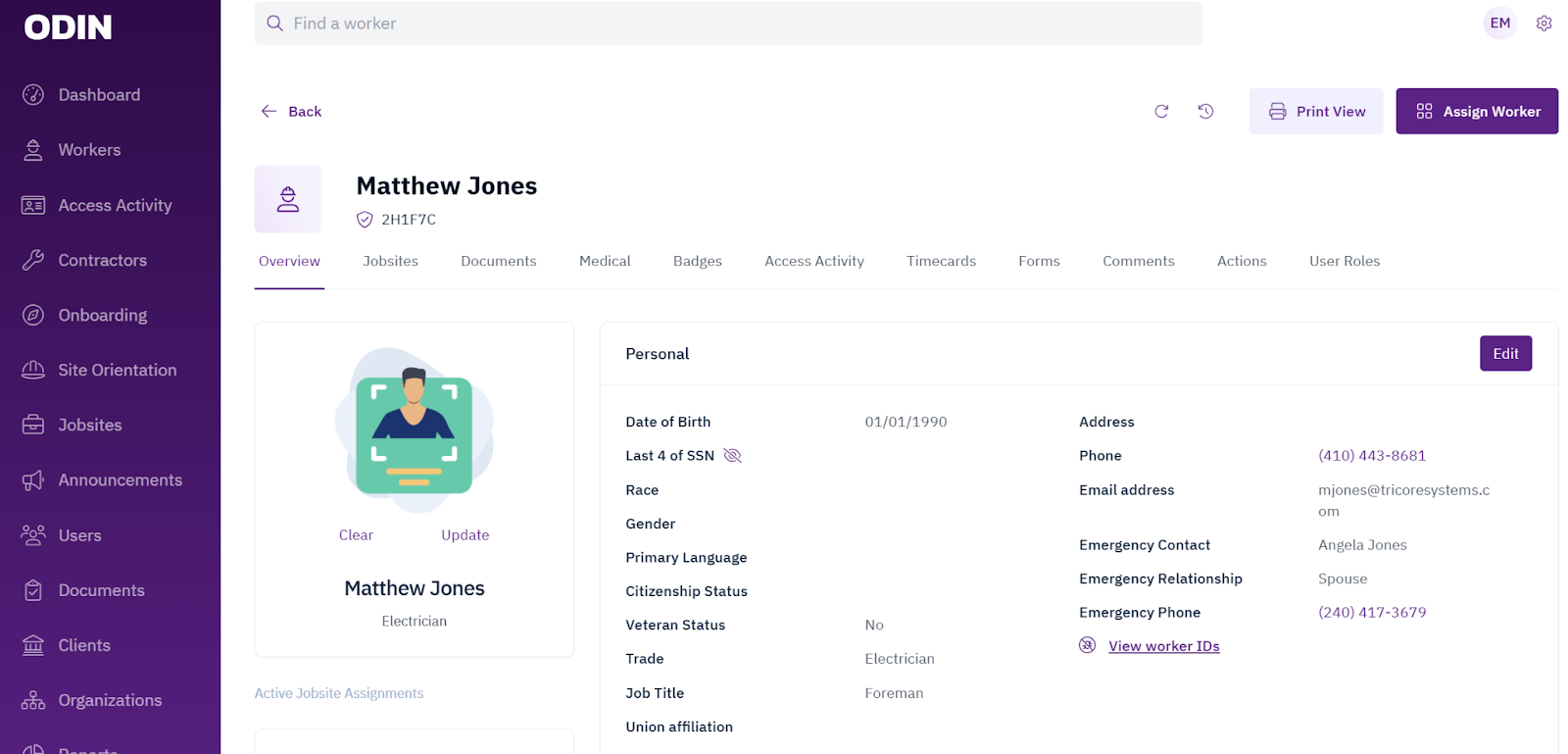
Select Badges
Click the Badges tab on the worker’s profile.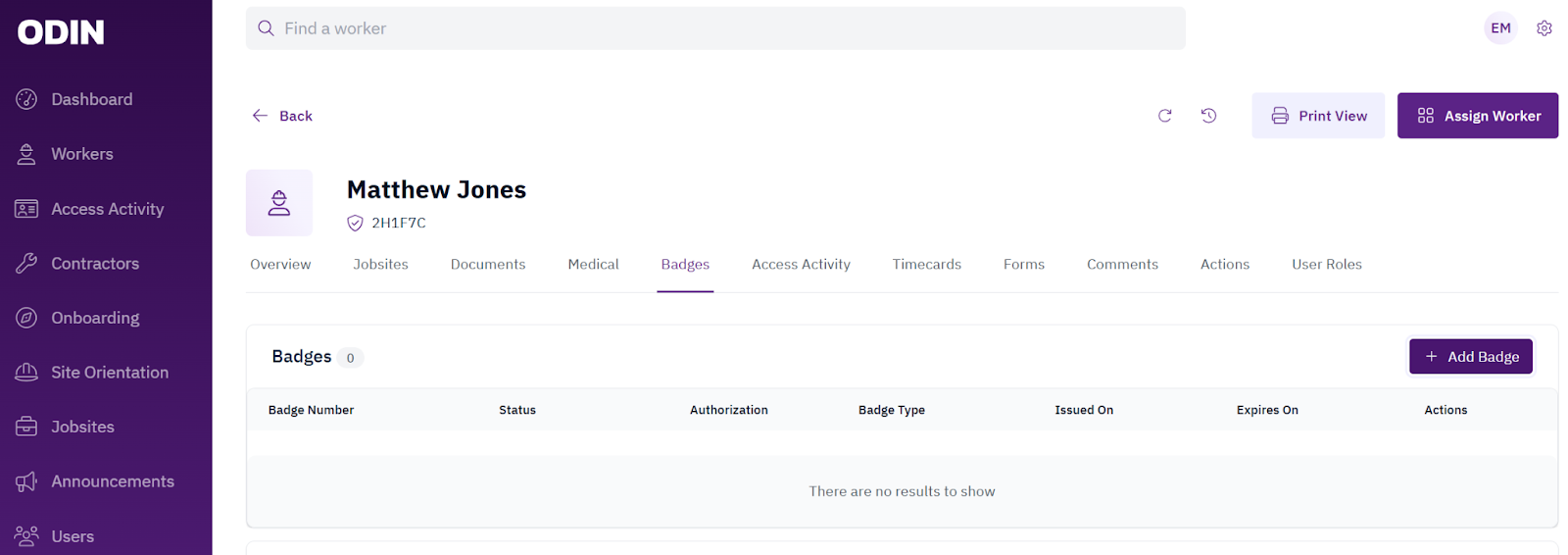
Select Add Badge
Click Add Badge.
Confirm Badge type
Confirm the badge type and select Continue.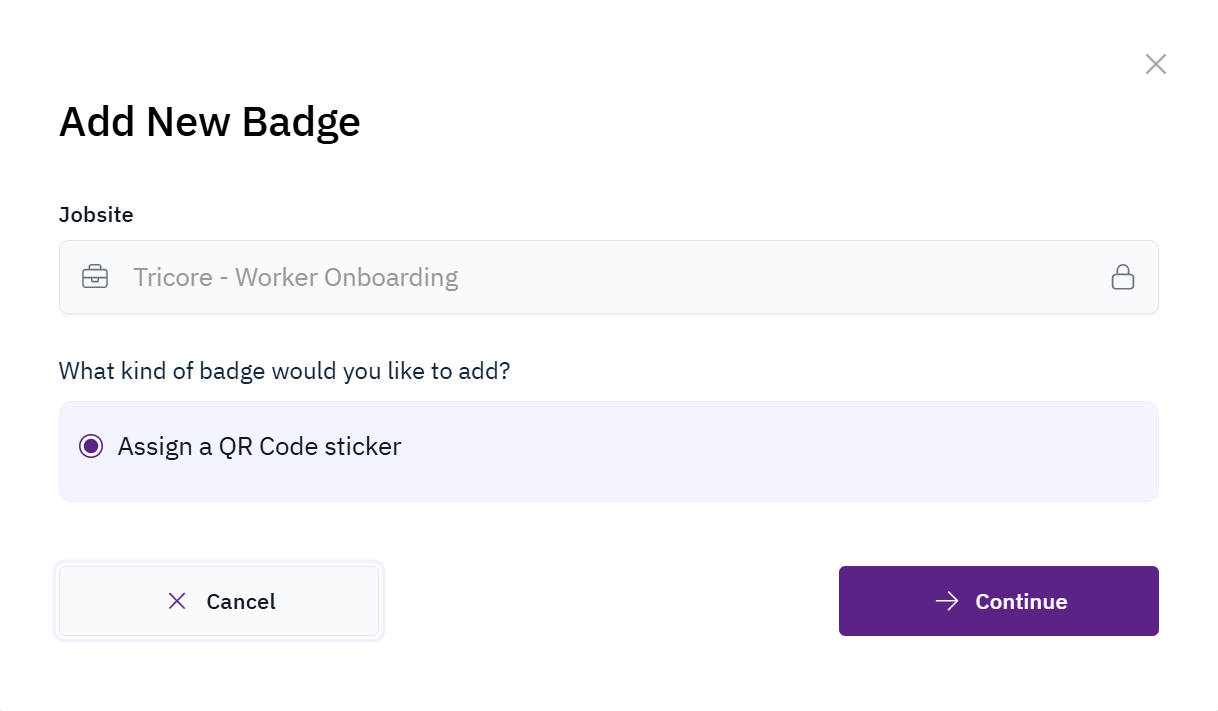
Enter the QR Code Number
Type in the QR Code Number and select Assign QR Code.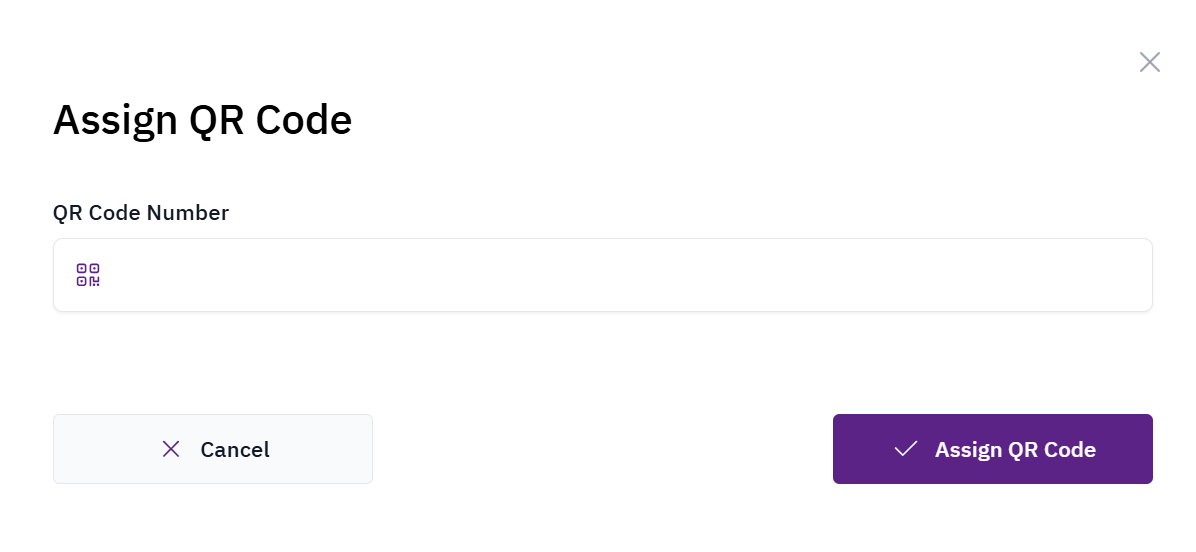
Distribute sticker to the worker
Provide the sticker to the worker.
Display and scan the sticker
The worker should display the sticker on their hardhat or badge. Scan the sticker on site at a kiosk or using the Odin mobile app.
Users scanning stickers via the Odin mobile app need Jobsite Admin access.

