Enable visitor logs
An Odin admin can enable visitor logging in the jobsite settings. Under the Custom Forms tab, add a form, choose “Visitor Log”, and then save your changes.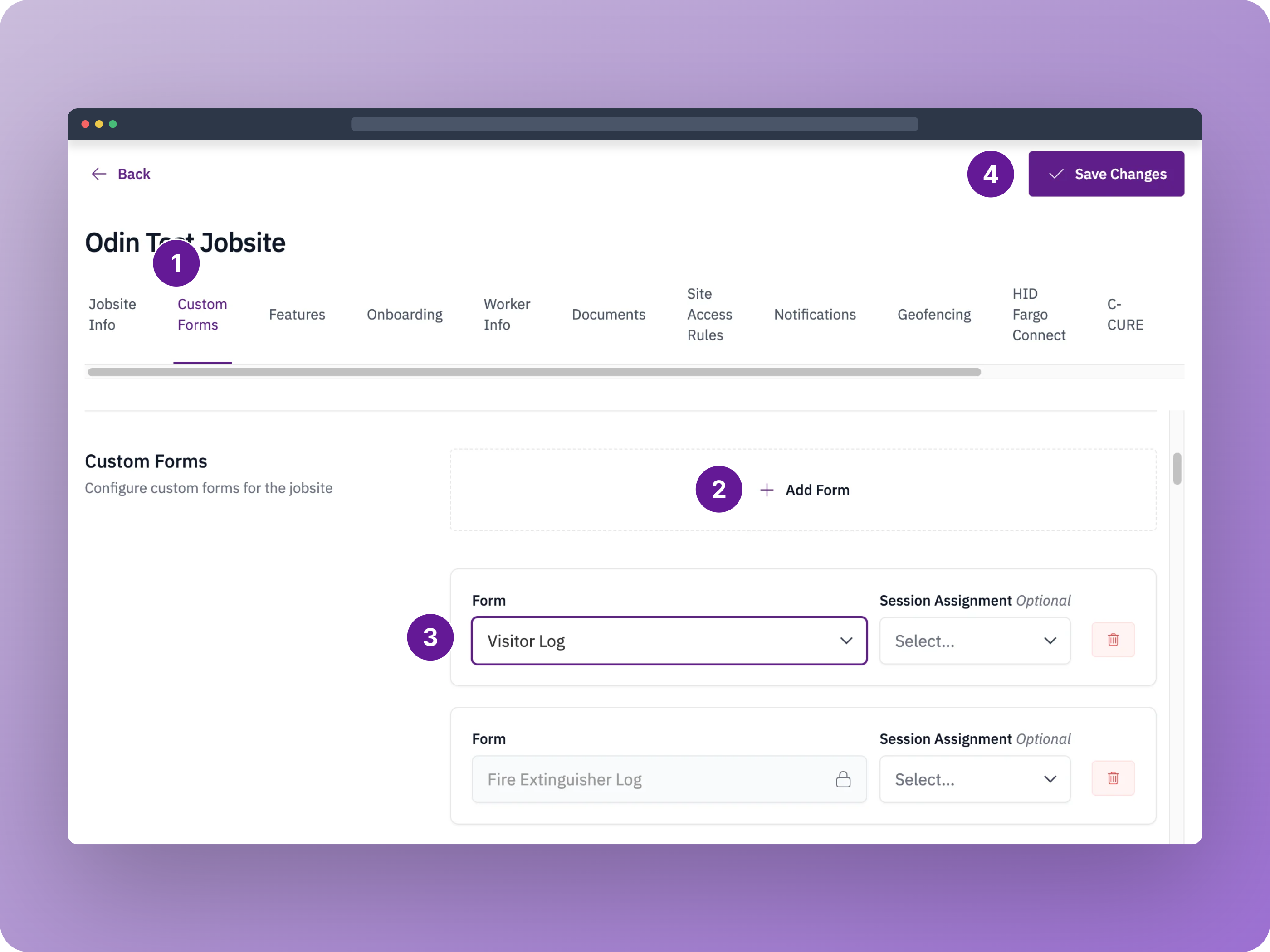
Logging a visitor
Using the Odin mobile app, you can log a visitor from the Toolbox or Docs screens.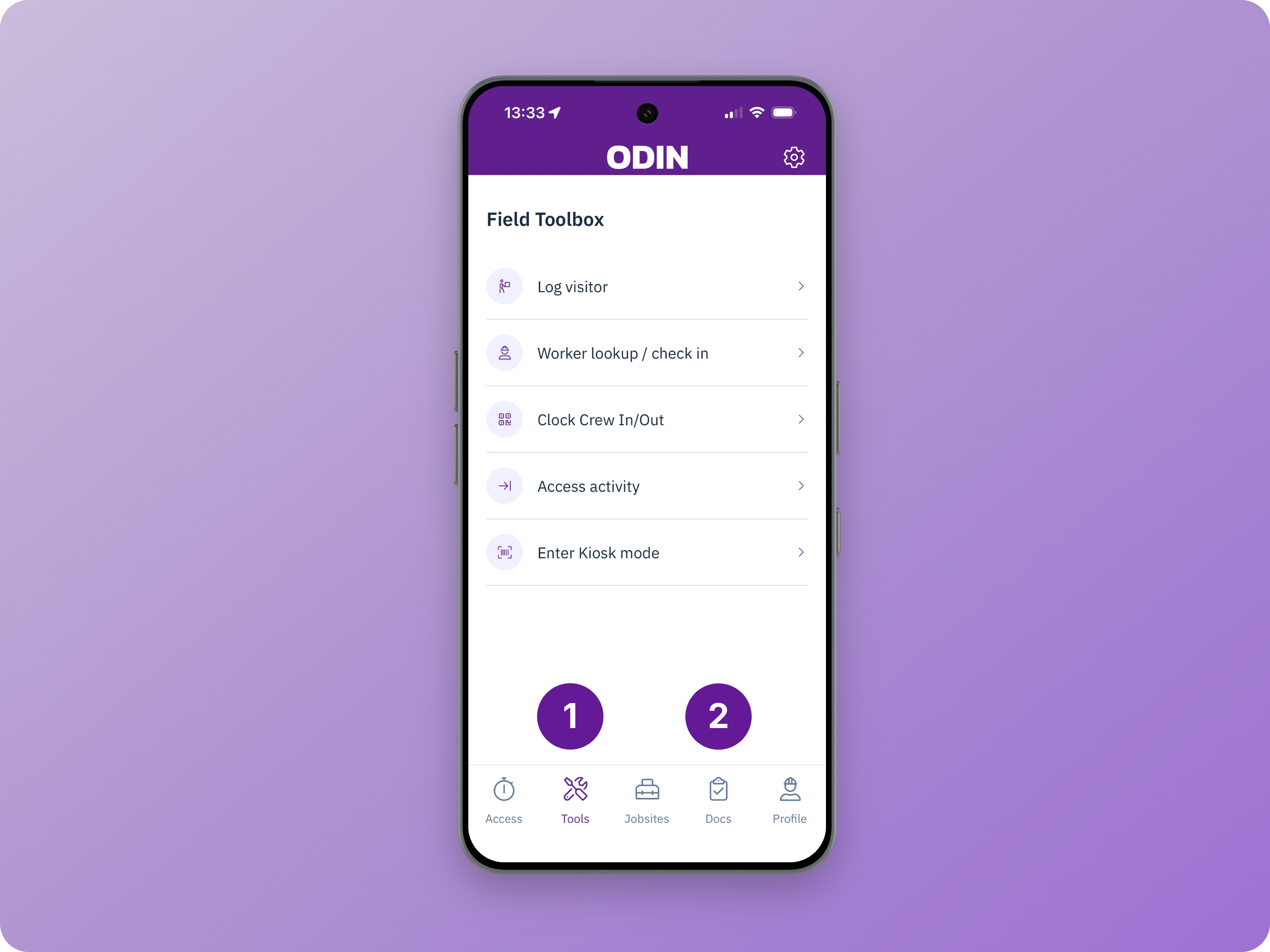
1. Select a visitor
The first step is to identify who is visiting. You should first search for the visitor to see if they are already in Odin. You can find them using their name, phone number, trade, job title, or quick code.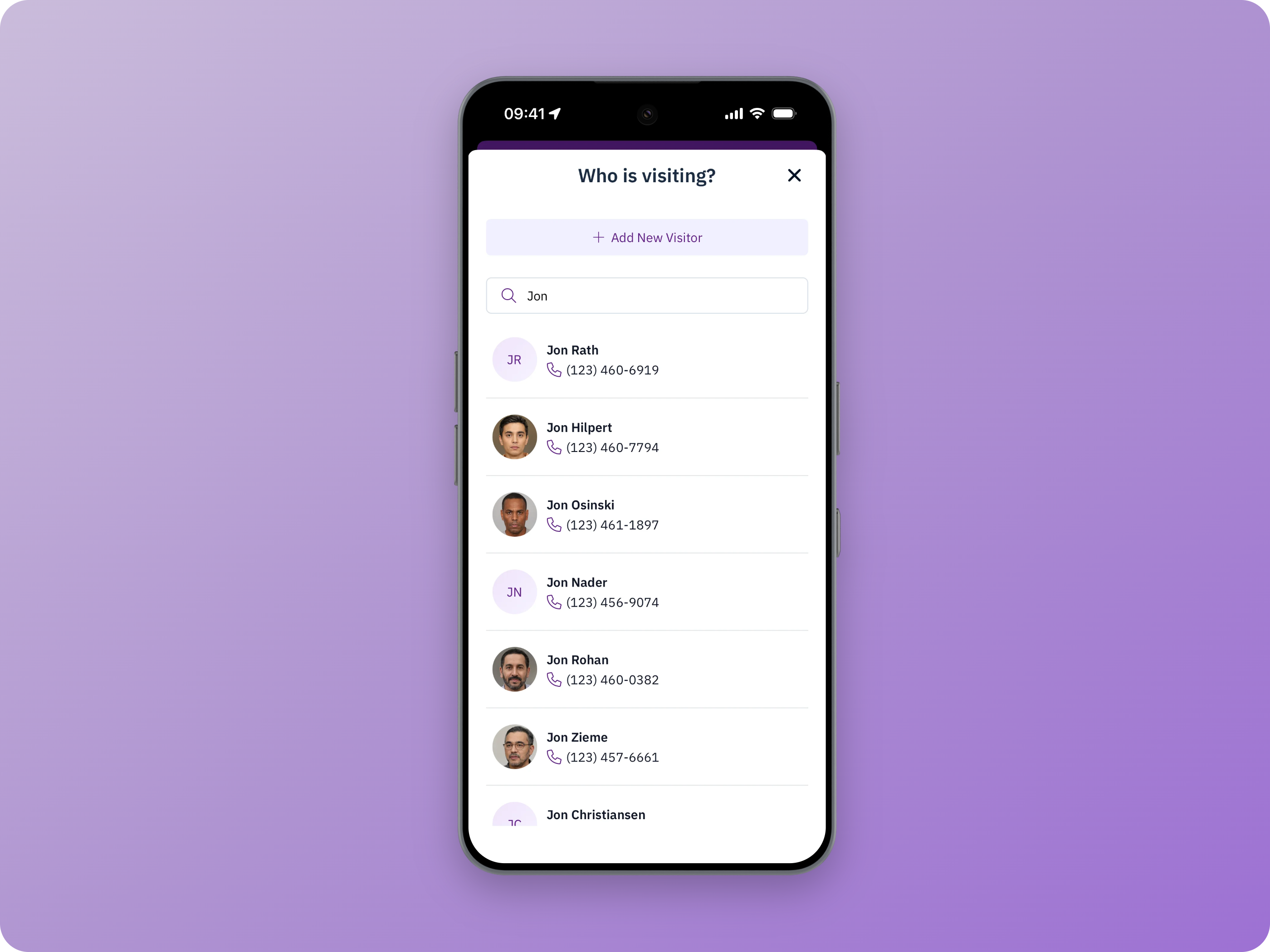
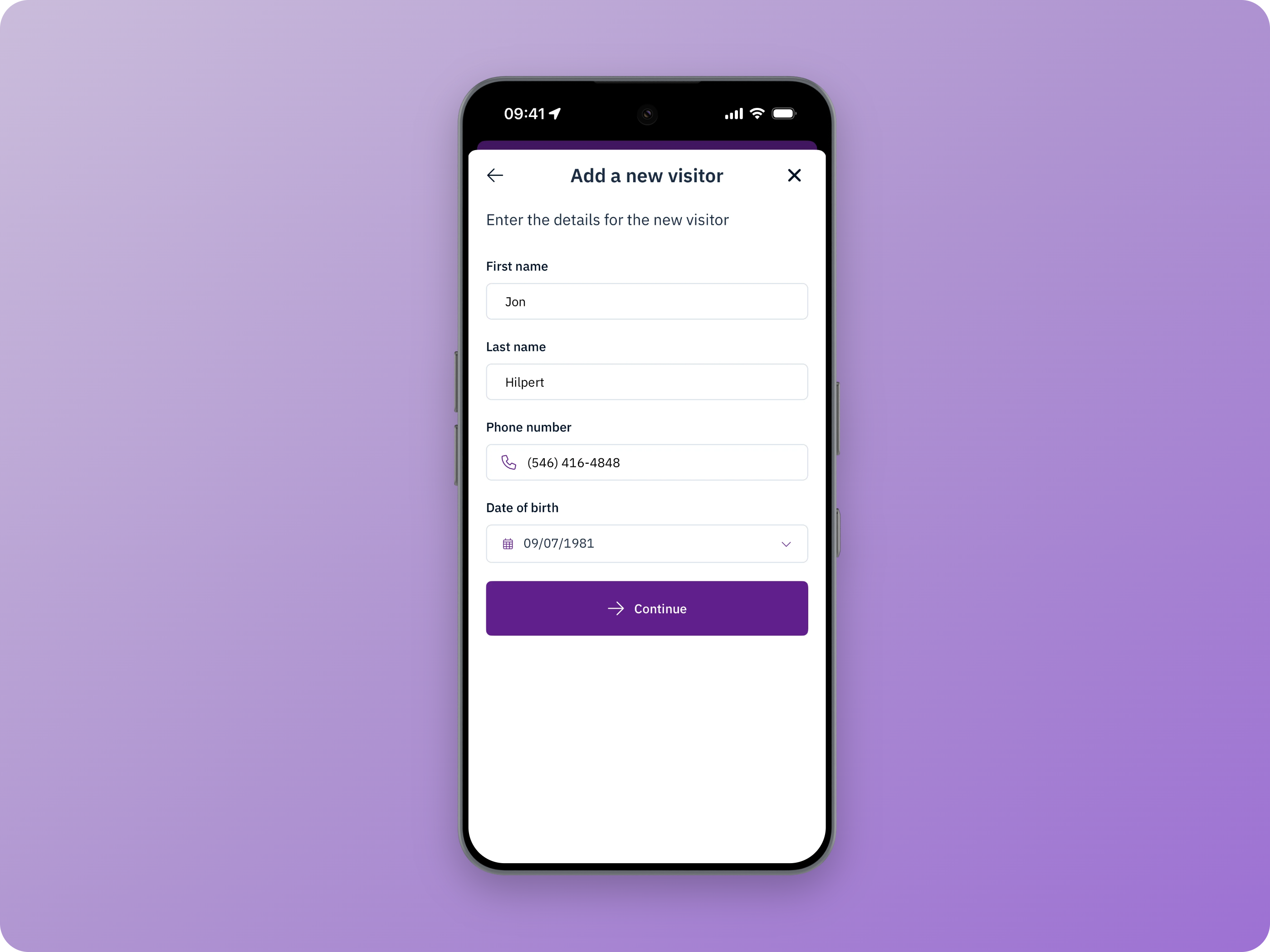
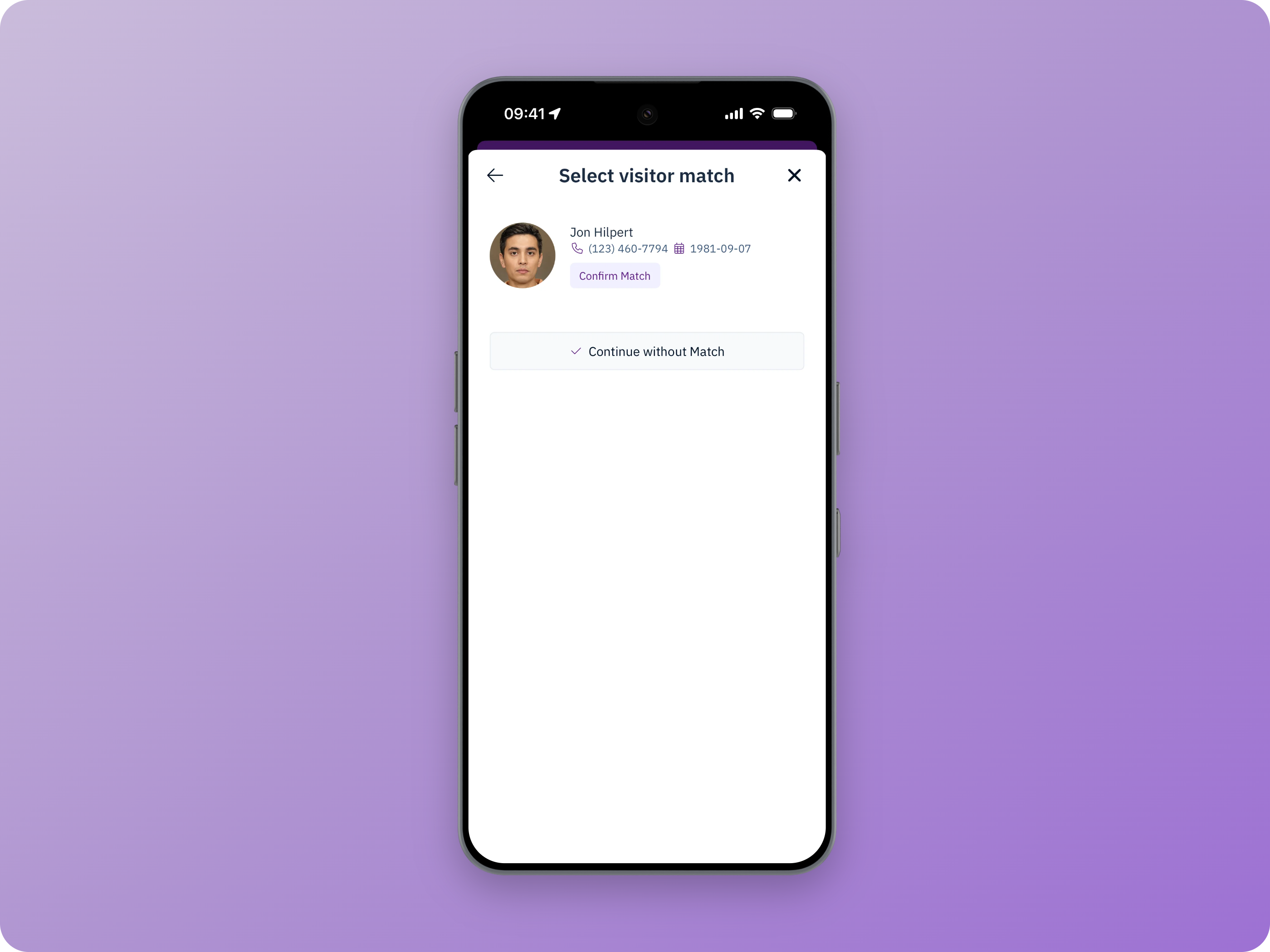
2. Capture vehicle info
Optionally record vehicle information for the visitor, including a license plate photo.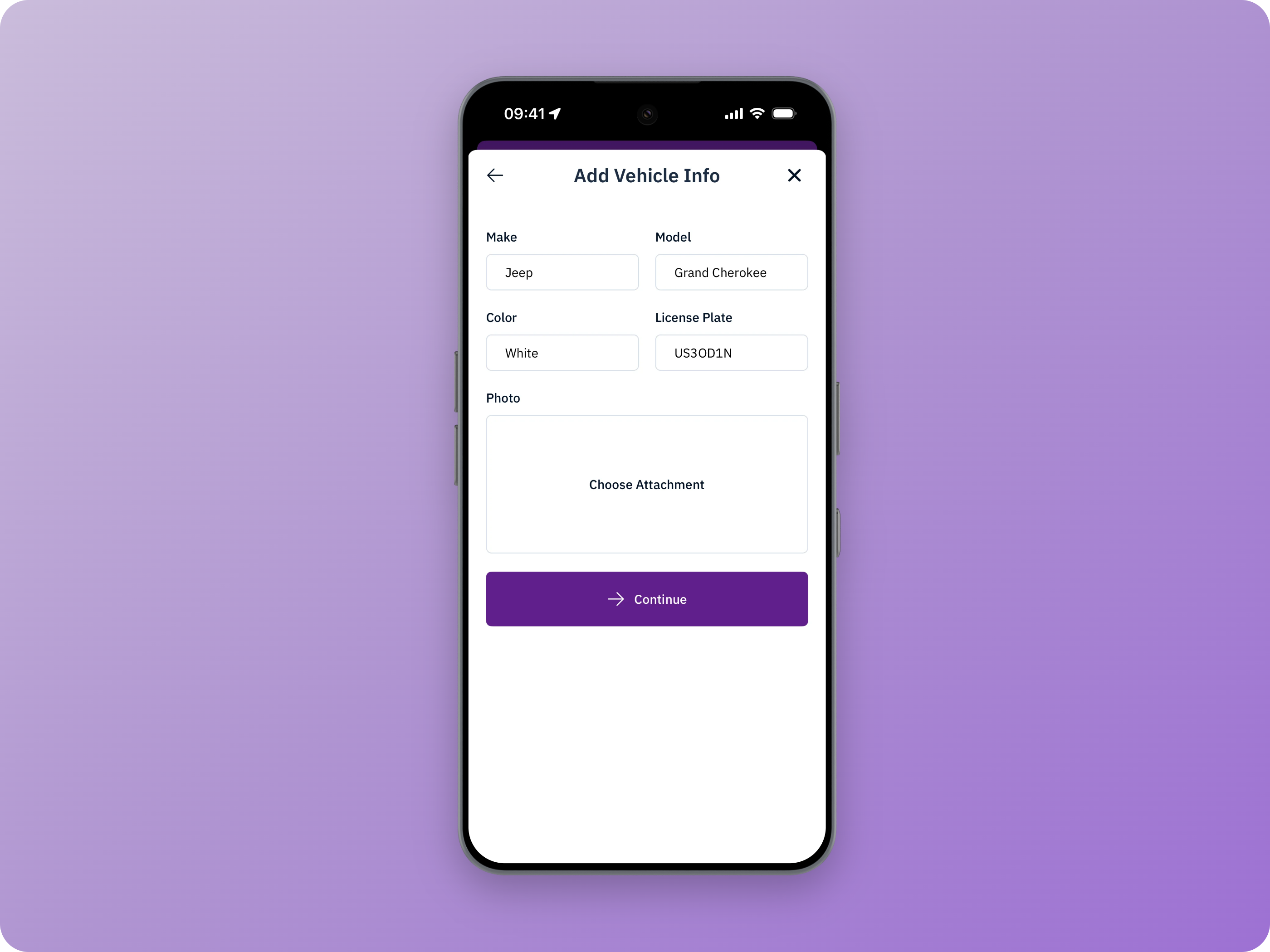
3. Assign a temporary badge
If needed, assign a temporary badge for door, gate, and turnstile access. Only badges in Registered status are assignable. Learn more about managing your jobsite’s temporary badges.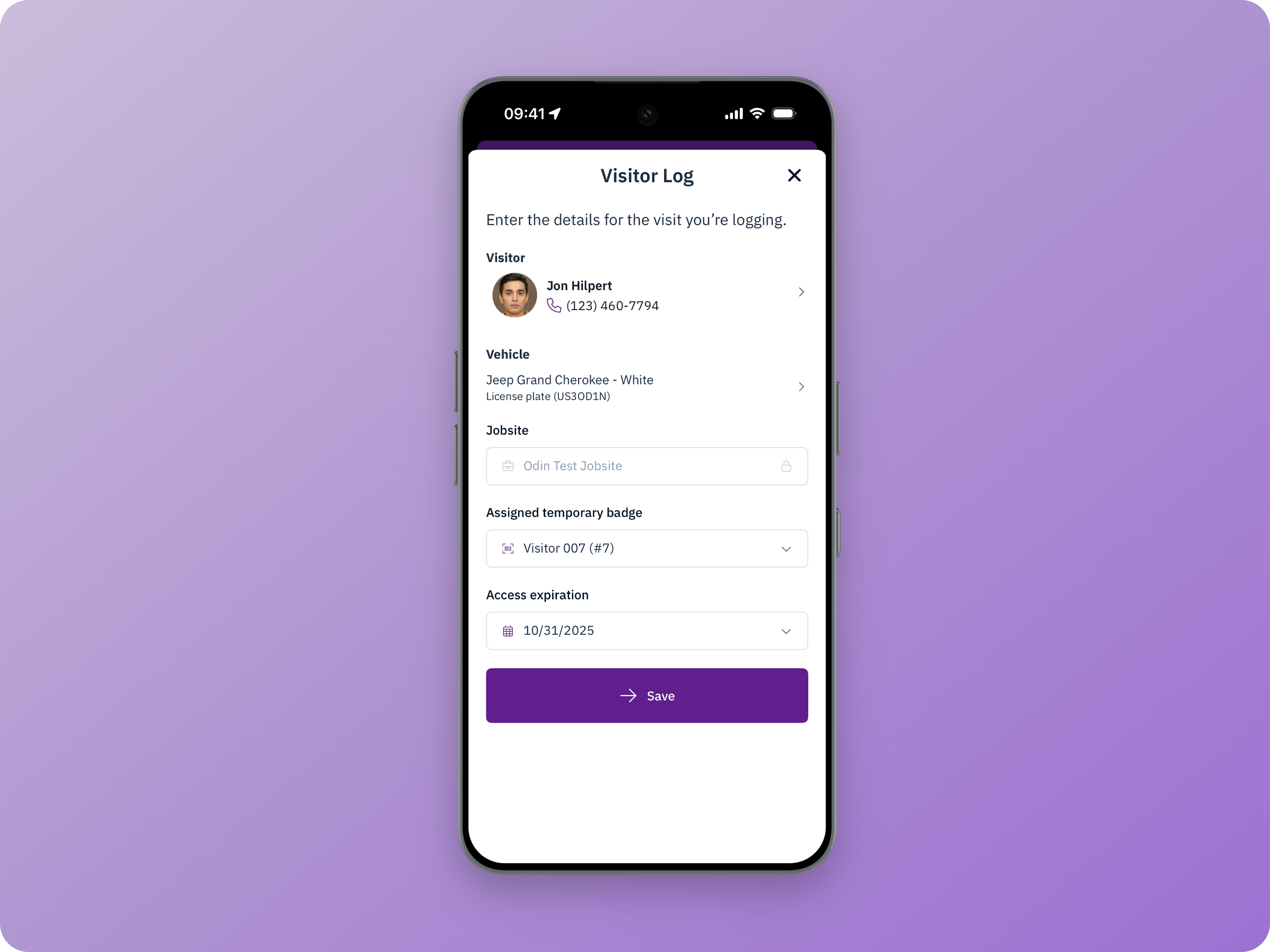
View existing visitor logs
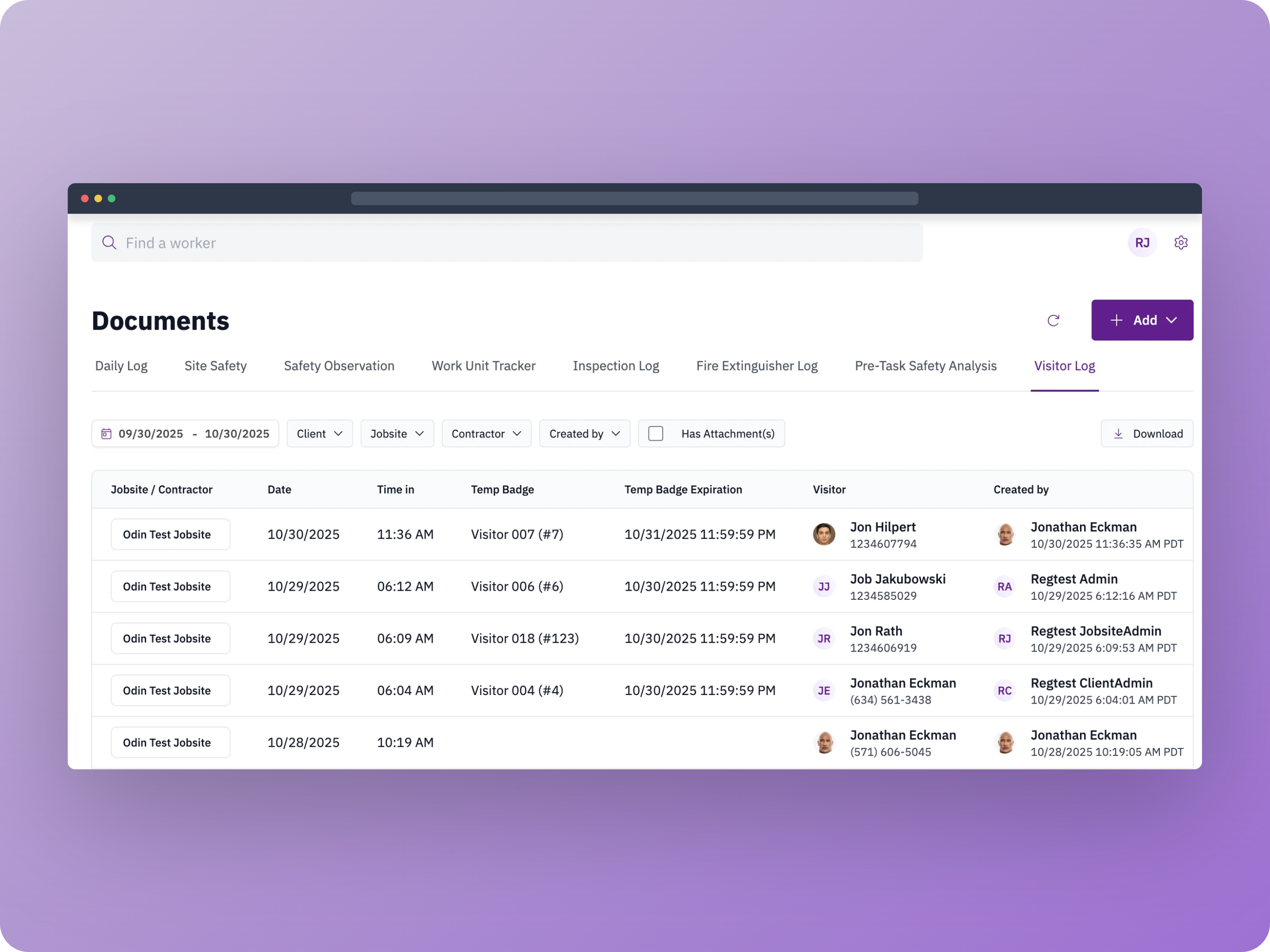
View existing visitor logs under the Visitor Log tab in the Docs.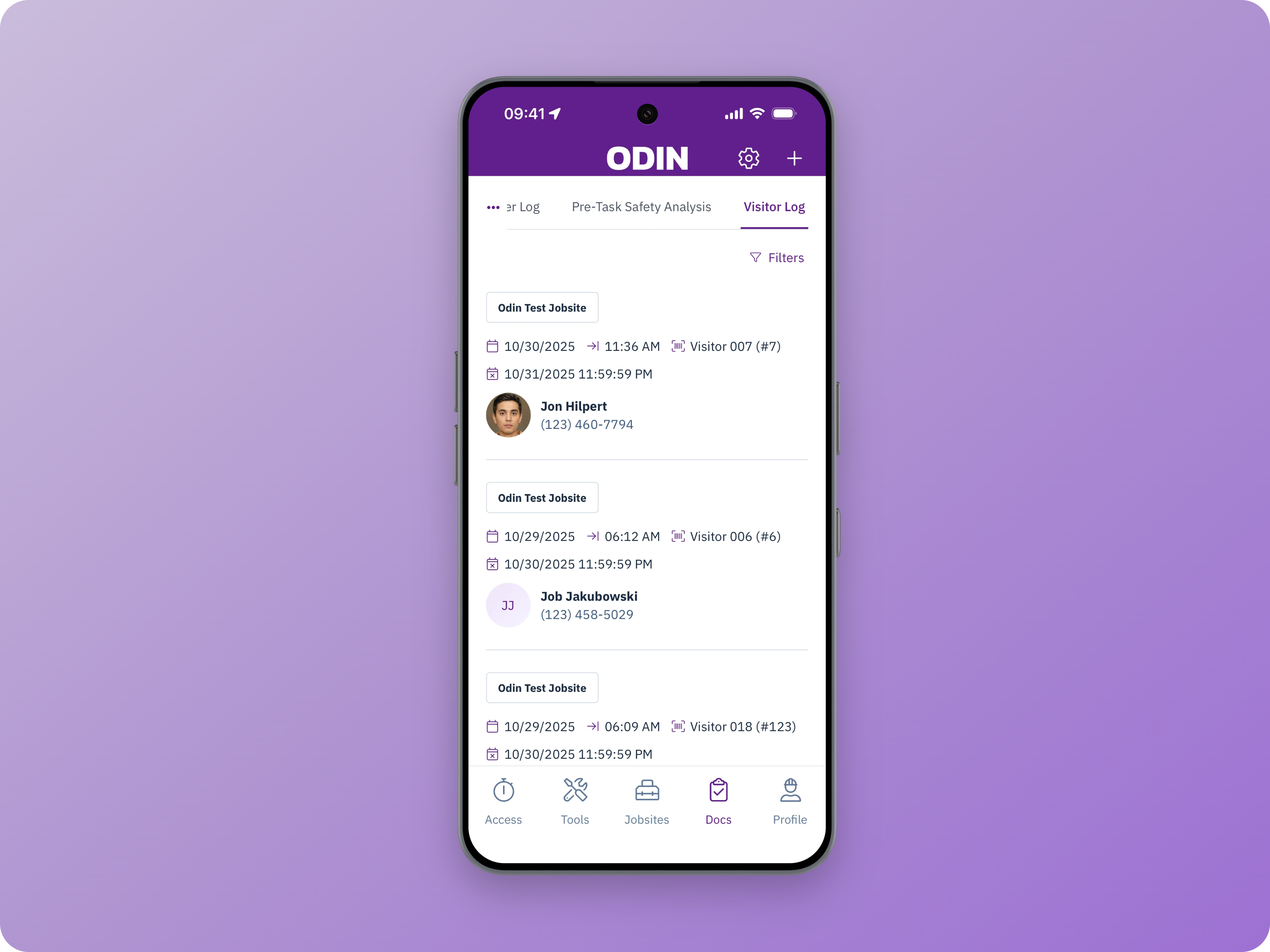
When viewing past visitor logs, you will see the visitor’s active temporary badge assignment. The visitor’s temp badge will be blank once the badge has been returned. You can check the Badges tab on the visitor’s profile to view prior assignments.
Who can use visitor logs?
Users assigned the following roles will be able to see and manage visitor logs. The visitor log controls will be hidden from all other users.- Client Admin
- Jobsite Admin
- Admin
- Security Supervisor
View visitor logs in the web portal
Visitor logs can be created and edited only in the Odin mobile app. In the web app, you can view existing logs under Documents.